How metadata keys work
Each item on an order can carry one or more metadata entries — a key and a value. Your platform sends these to Zonos when an order is created. By default, Zonos stores this metadata but does not display it on the order breakdown.
When you add a key on the preferences page, Zonos looks for that key on each order item and shows the matching value as an extra row underneath the item.
- Multiple values for the same key are joined together with a comma — for example,
red, large. - Items that don't have the key simply don't show the row, so order details stay clean.
- Keys are configured org-wide. Every user in your organization sees the same metadata rows.
When to use this
Common use cases:
- Engraving or personalization — surface an
engraving-textkey so the warehouse knows the order needs custom work before shipping. - Gift orders — show a
gift-messageorgift-wrapkey so packers can include the right insert. - Subscriptions or loyalty — display a
subscription-idorloyalty-tierkey for support and fulfillment context. - Custom platform fields — any item-level field your platform passes through that your team needs to see on the order.
Add a metadata key
- Go to Dashboard -> Settings -> Orders -> Preferences.
- In the Metadata keys field, type the exact key name your platform sends (for example,
engraving-text). - Click Add.
The key will immediately apply to all order details pages. Open any order breakdown to confirm the new row appears under each item that carries that metadata.
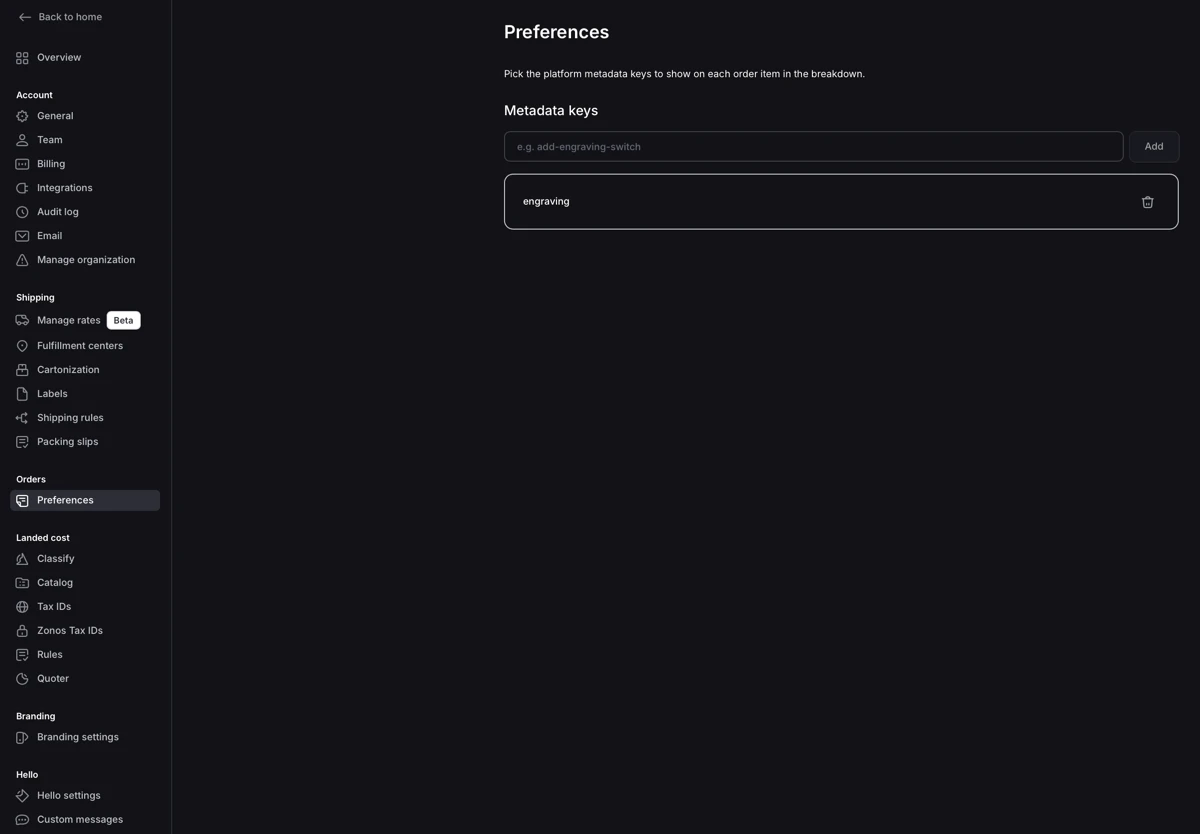
Key names are case-sensitive and must match exactly what your platform sends. If you're not sure of the exact key, check a recent order's raw metadata or ask your developer.
Remove a metadata key
- Go to Dashboard -> Settings -> Orders -> Preferences.
- Find the key you want to remove in the list.
- Click the trash icon on the right side of the row.
The row will stop appearing on the order breakdown for new and existing orders.
Troubleshooting
The row doesn't appear on the order details page.
- Confirm the key name matches exactly, including case and any dashes or underscores (
engraving-textis not the same asEngraving_Text). - Confirm the order item actually has that metadata. Older orders created before your platform started sending the key won't have it.
The row appears but is empty.
- The platform sent the key with an empty value. Check the integration on the platform side to make sure the value is being populated.
A key is showing on some items but not others.
- This is expected — metadata is per-item, not per-order. Only the items the platform sent the key for will show the row.
Order preferences
Show platform metadata on each order item.When your ecommerce platform sends extra information with each order — like an engraving note, gift message, or subscription ID — Zonos receives it as metadata. The order preferences page lets you choose which metadata keys should be displayed on every order item in the order breakdown, so your fulfillment team can see what's needed at a glance without opening the original platform.